Transfer eSIM to another device
iOS
Android
You can transfer your eSIM to another device at no extra cost. Have your eSIM email ready for this.
1. On your current device, go to Settings > Mobile Service. You should see your active GOMO line.
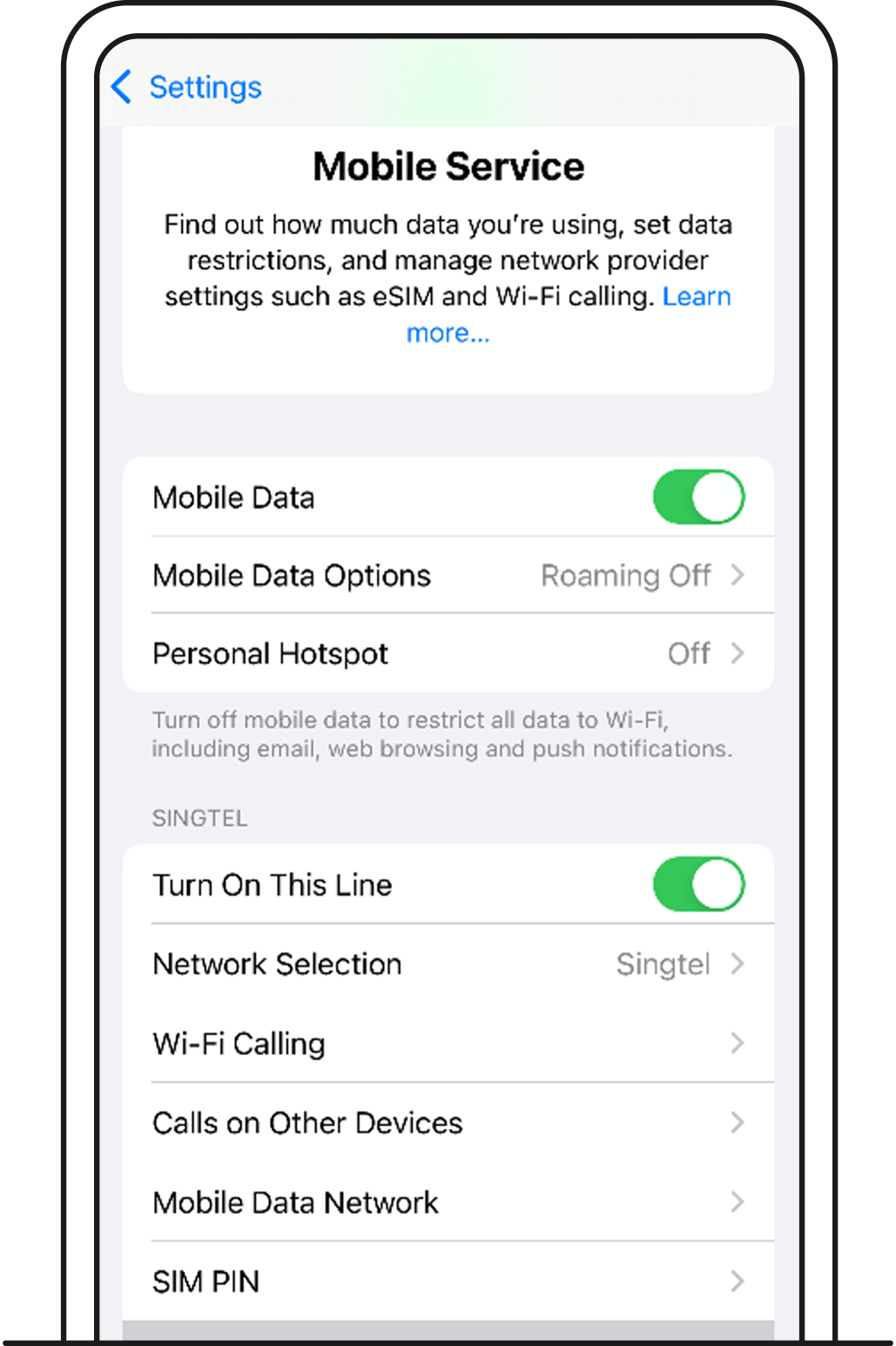
If you have more than 1 SIM in your device, you’ll see them in a list. Tap on your GOMO eSIM to bring up more options.
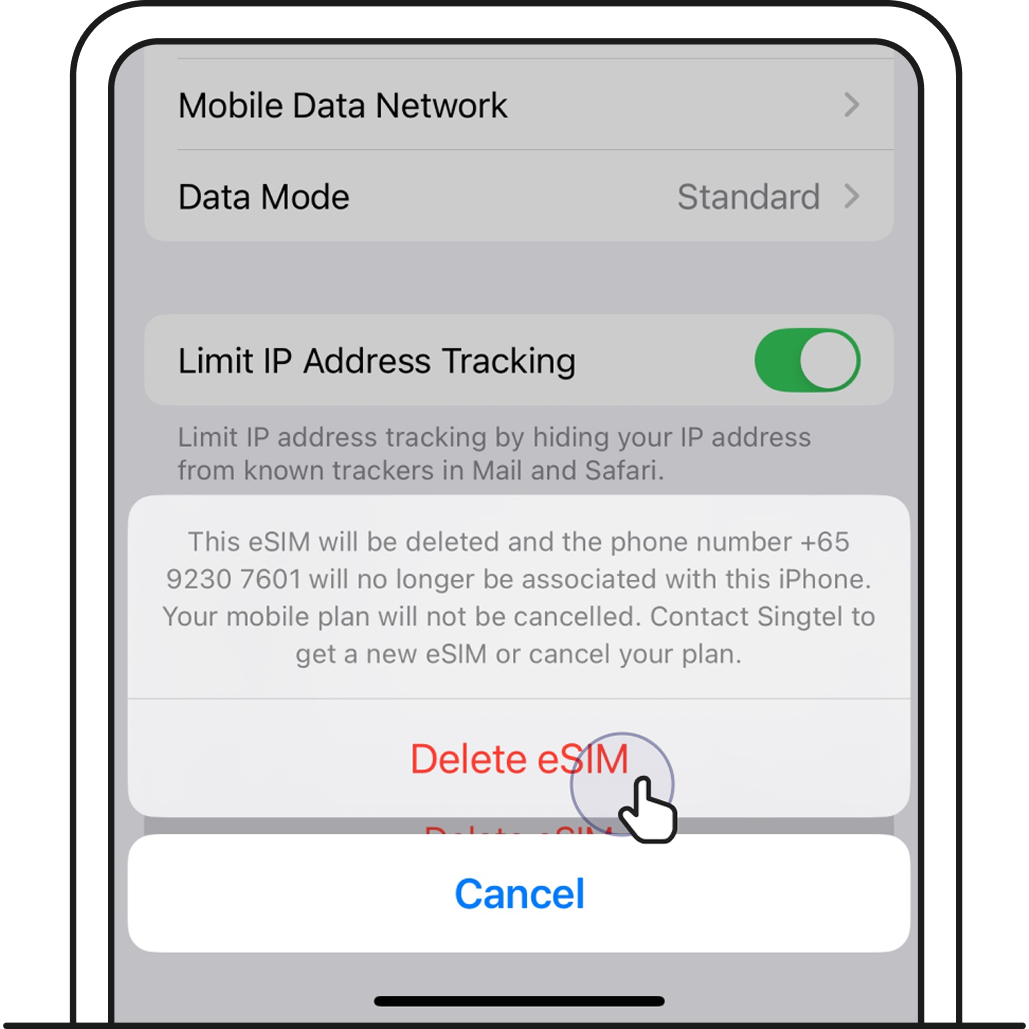
2. Tap Delete eSIM.
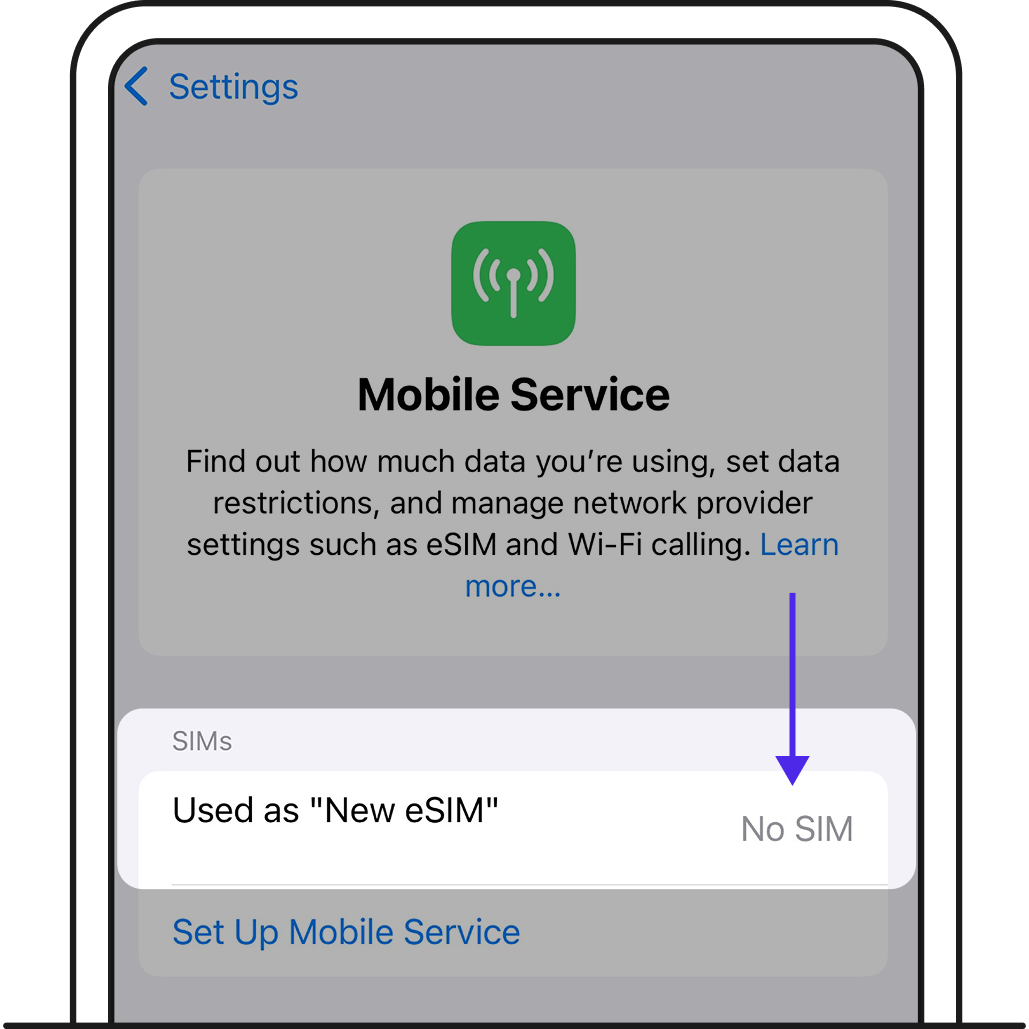
3. Your eSIM should now say No SIM on the Mobile Service page.
This indicates that your eSIM has successfully been deleted from your current device and can now be installed on a different one.
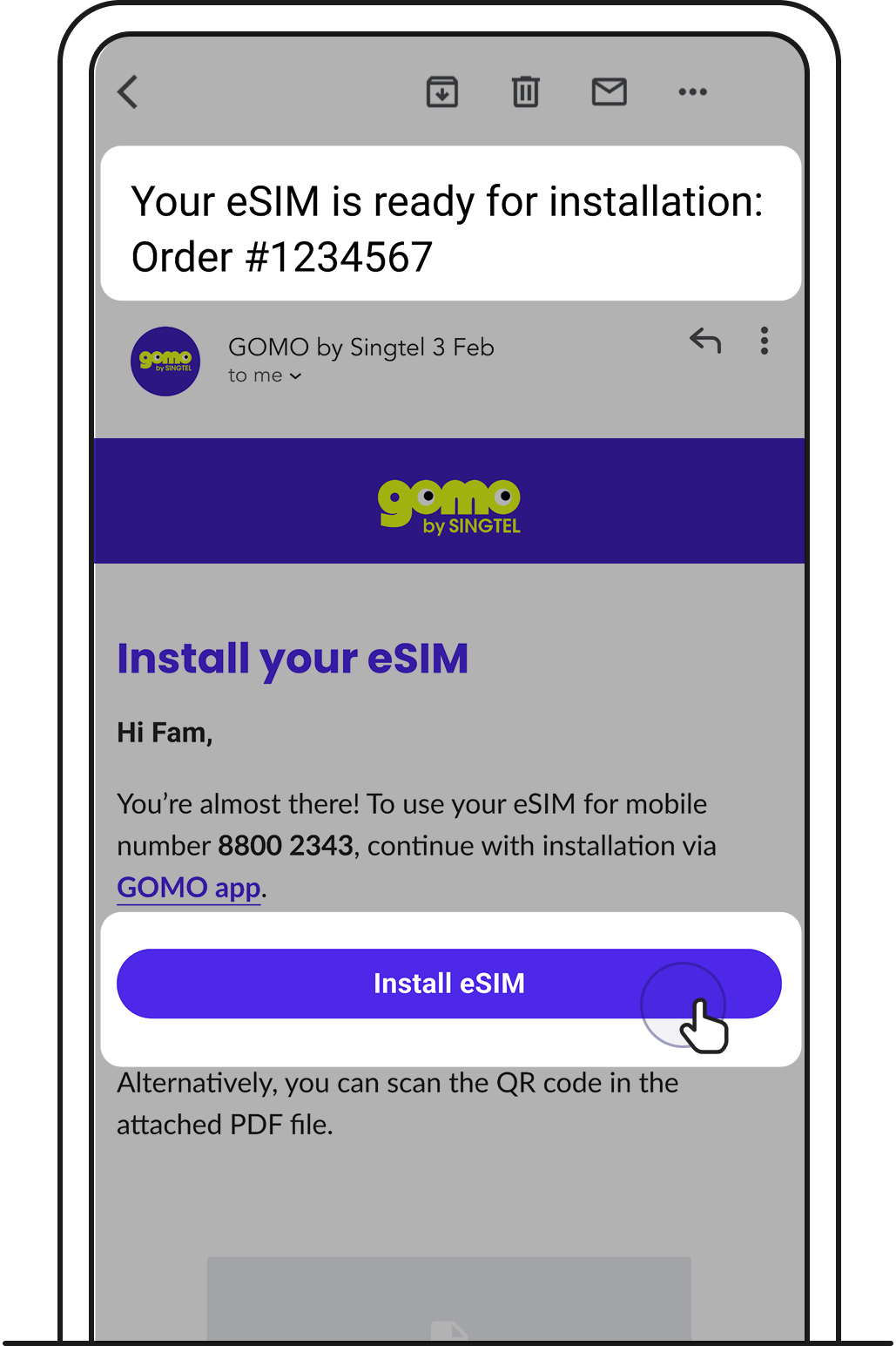
1. Open your eSIM installation email and tap Install eSIM.
5. Follow the steps from there or find out how in our set up eSIM guide.
You can transfer your eSIM to another device at no extra cost. Have your eSIM email ready for this.
1. On your current device, go to Settings > Connections > SIM manager. You should see your GOMO eSIM installed.
2. Tap on your GOMO eSIM to bring up more options.
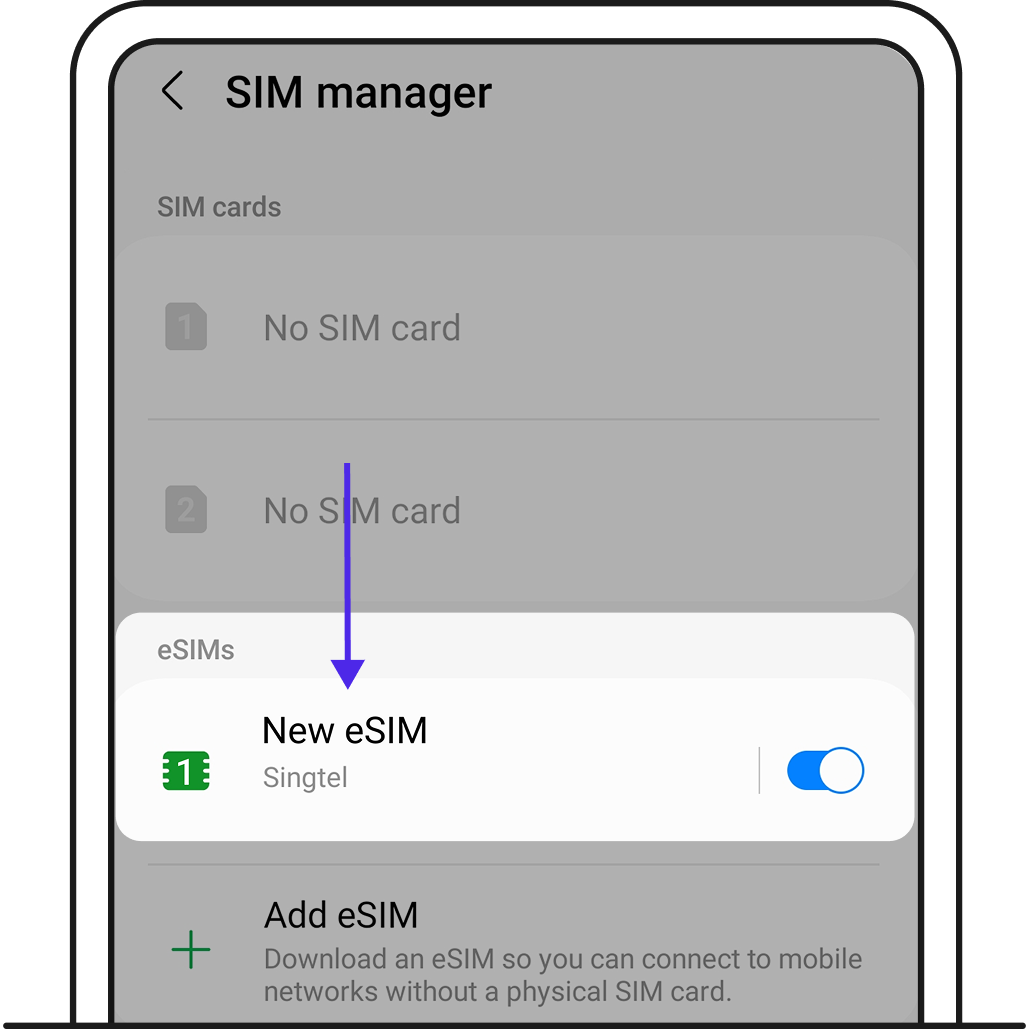
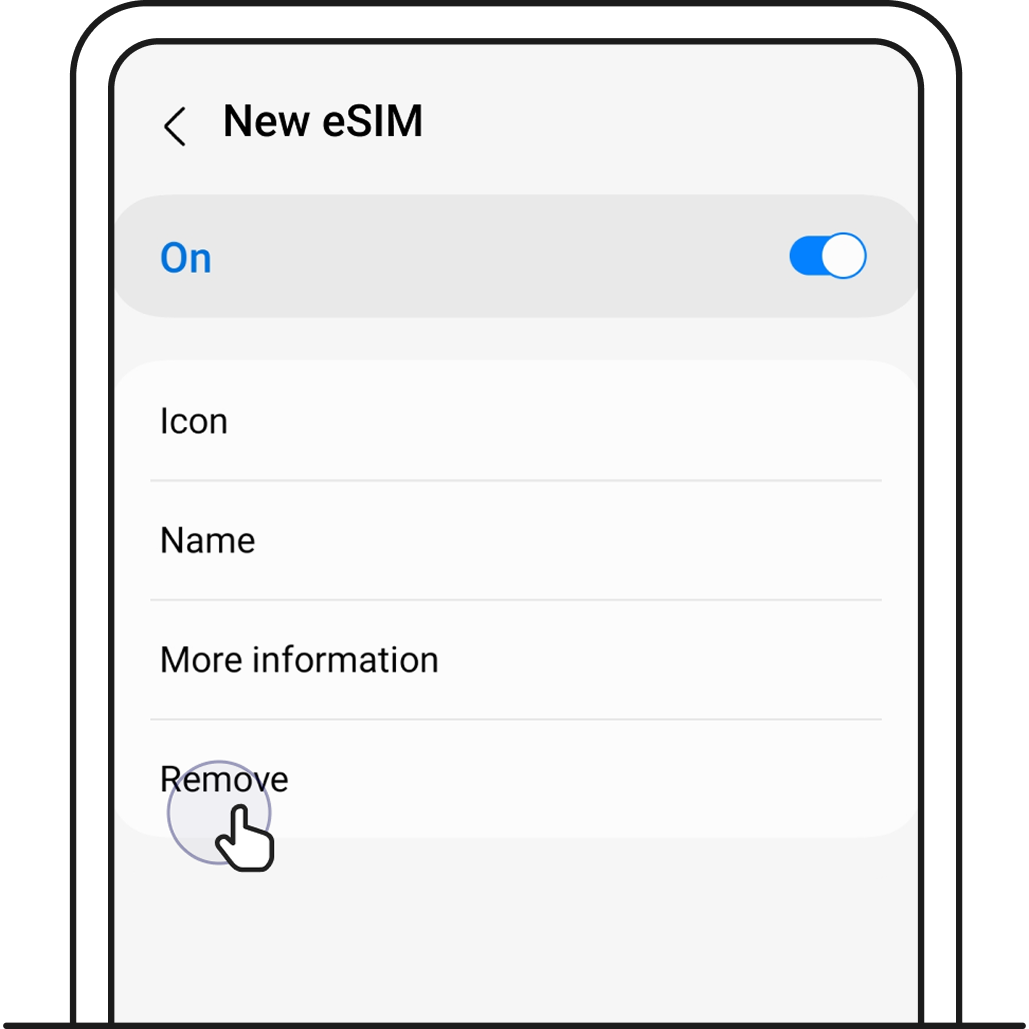
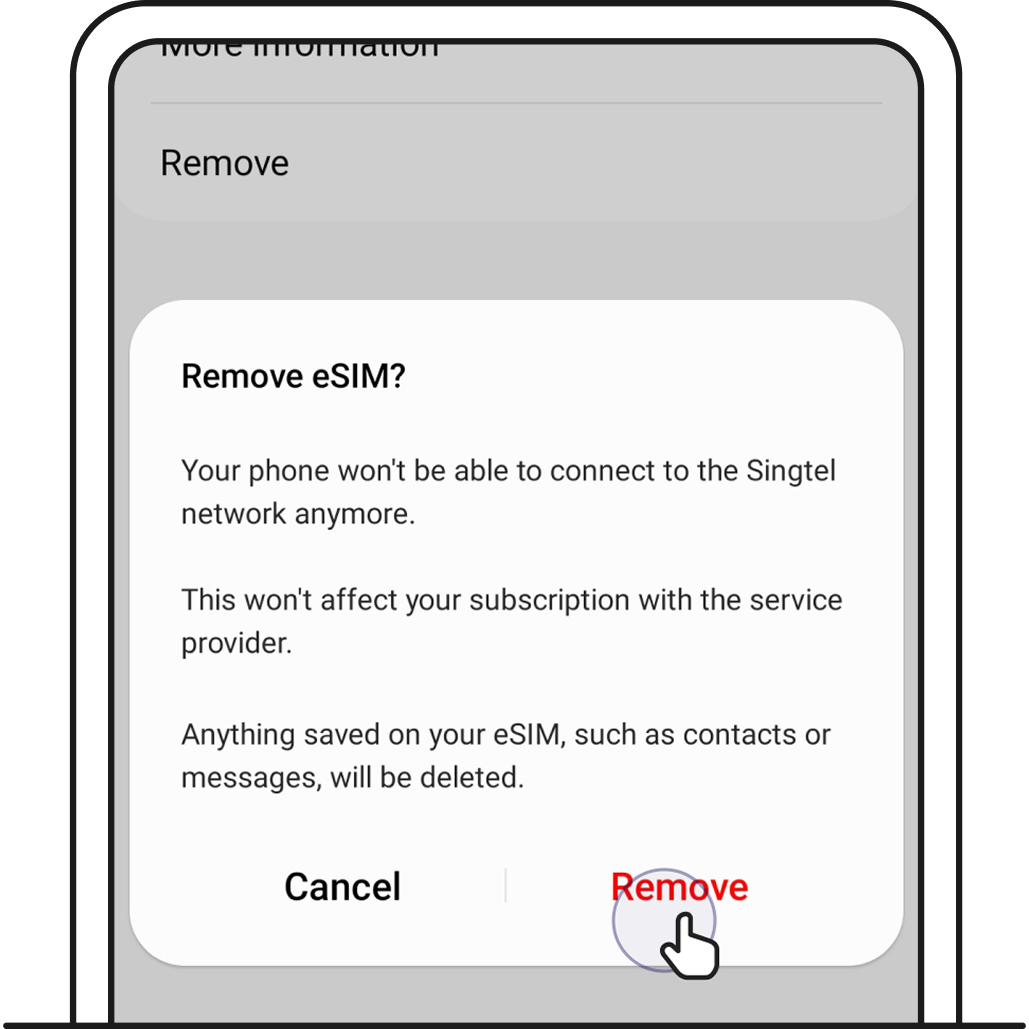
3. Tap Remove, then tap Remove again to confirm deletion of your eSIM on your old device. This may take a few minutes.
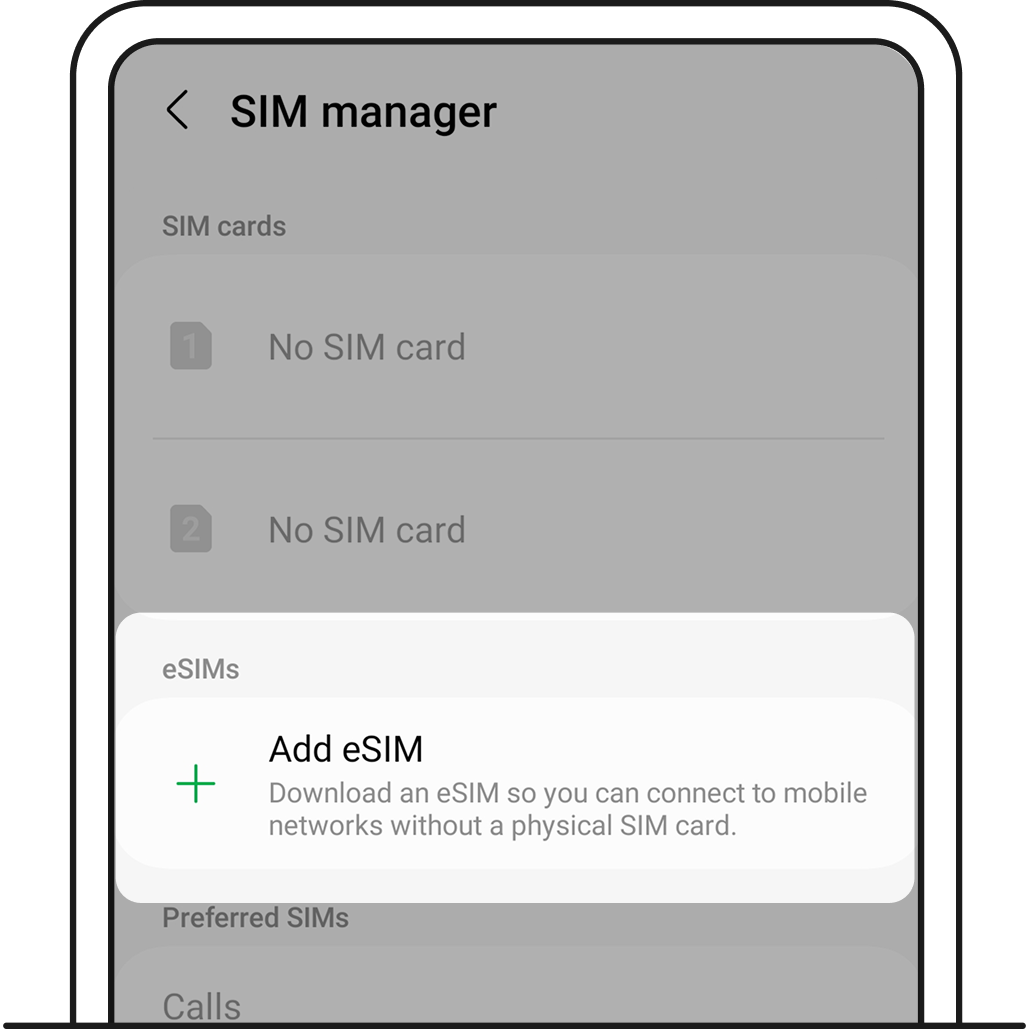
4. You’ll be brought back to the SIM manager page. Check that your eSIM has been removed.
You should now be able to install your eSIM on a different device.
1. Open your eSIM installation email and tap Install eSIM.
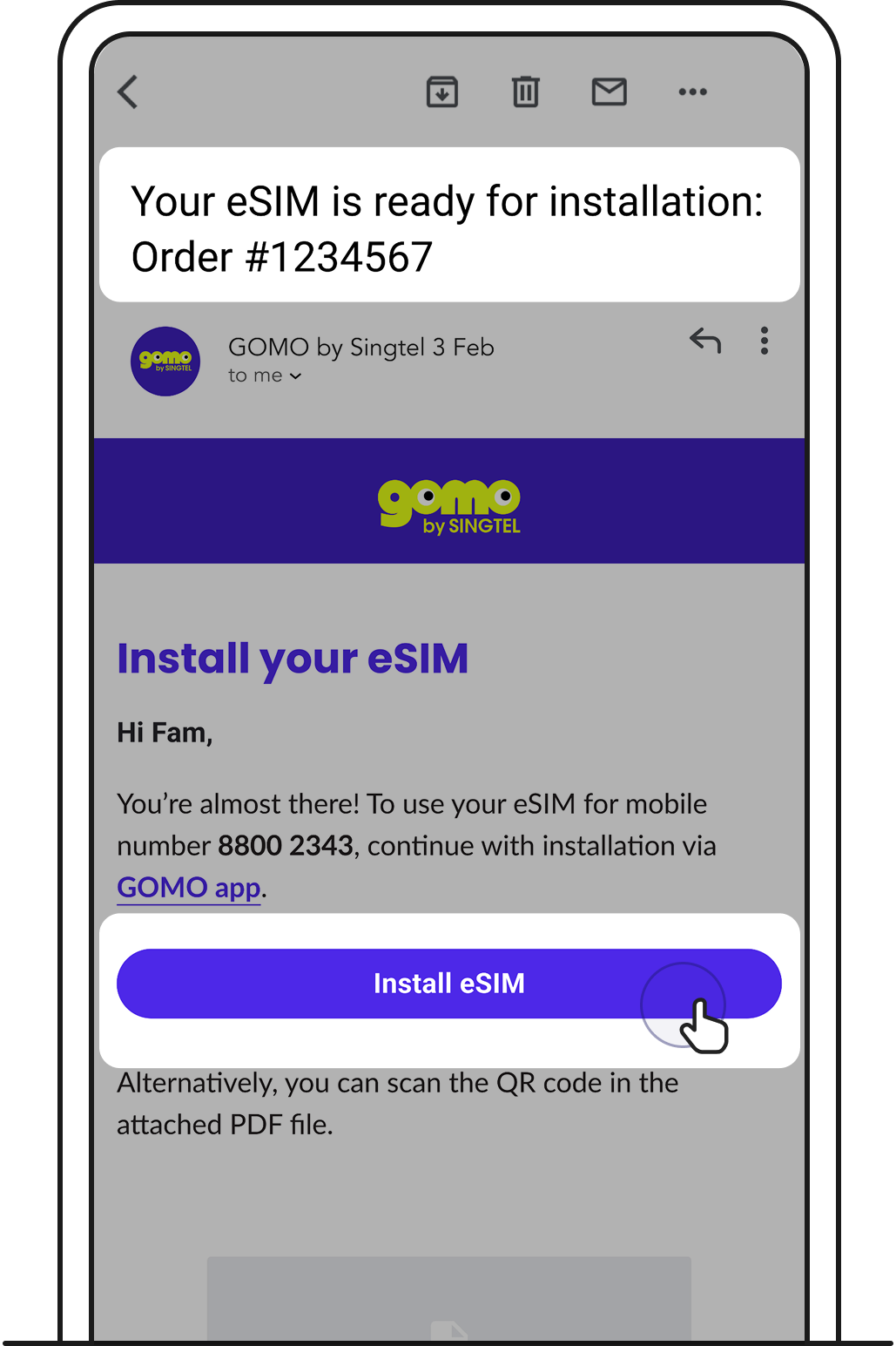
Follow the steps from there or find out how in our set up eSIM guide.
Related articles
Ask Zenmo your questions.