Set up eSIM
iOS
Android
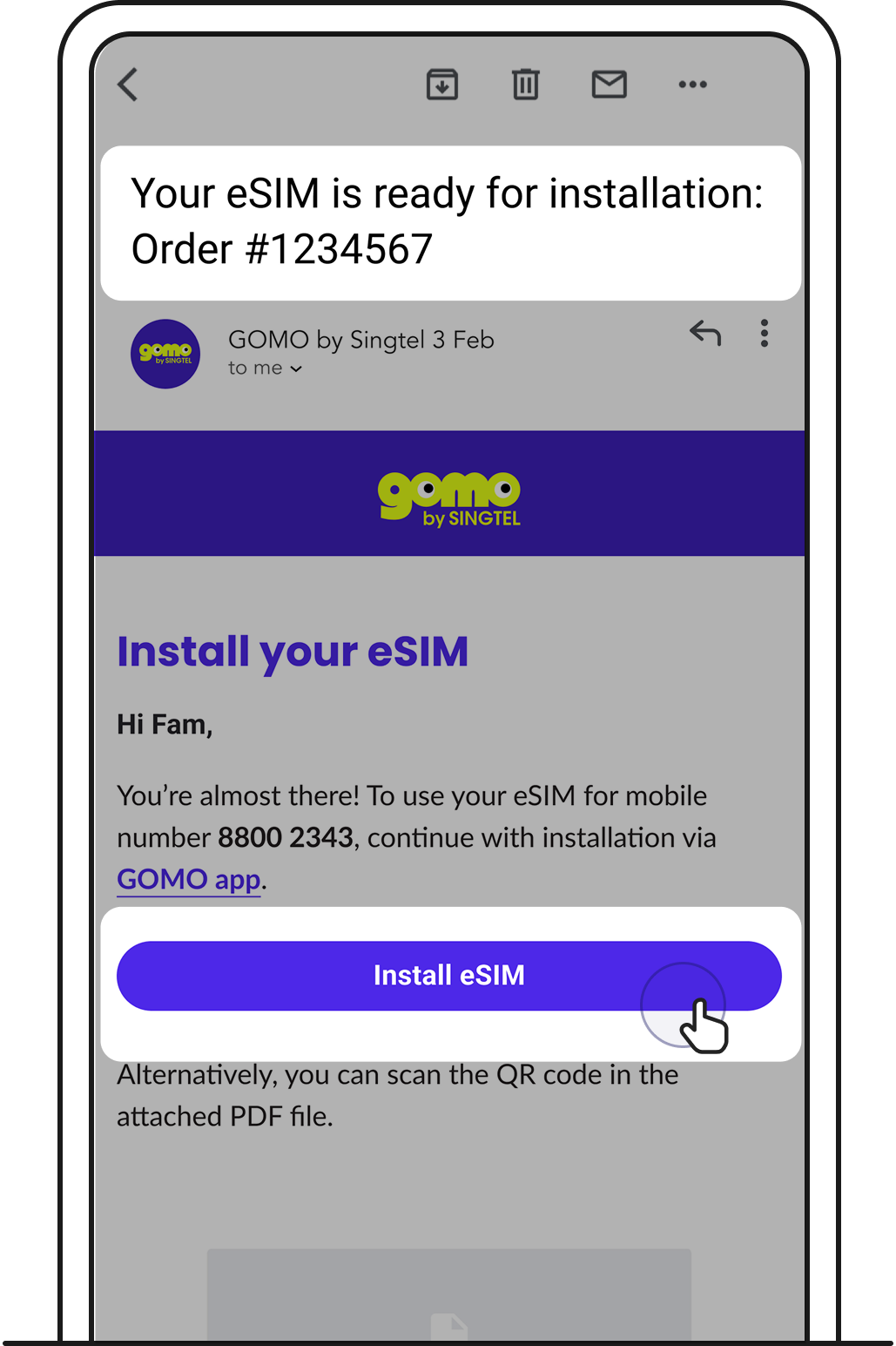
1. Open your eSIM installation email on the device you want to install it on, then tap Install eSIM.
If you’re porting in, simply set up your temporary number with the same steps.
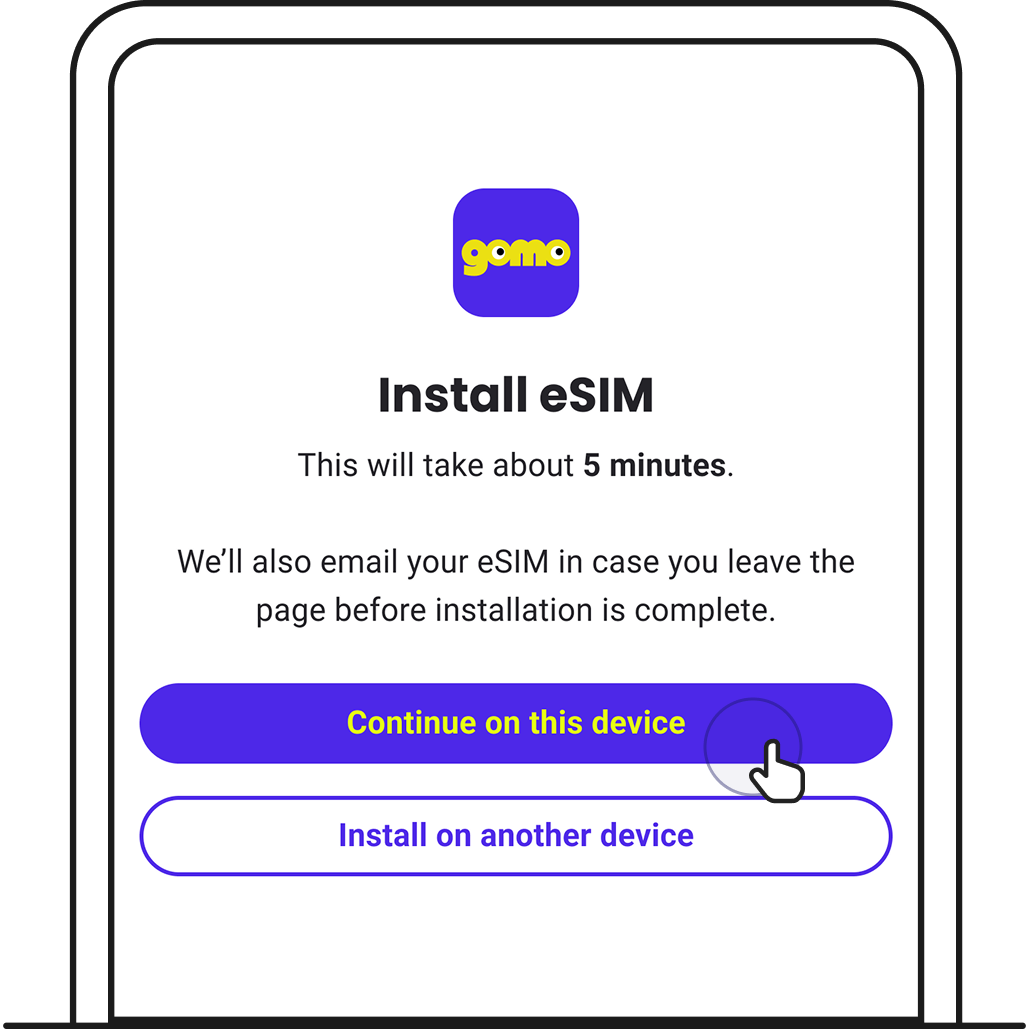
2. You’ll be brought to GOMO app. Tap Continue on this device.
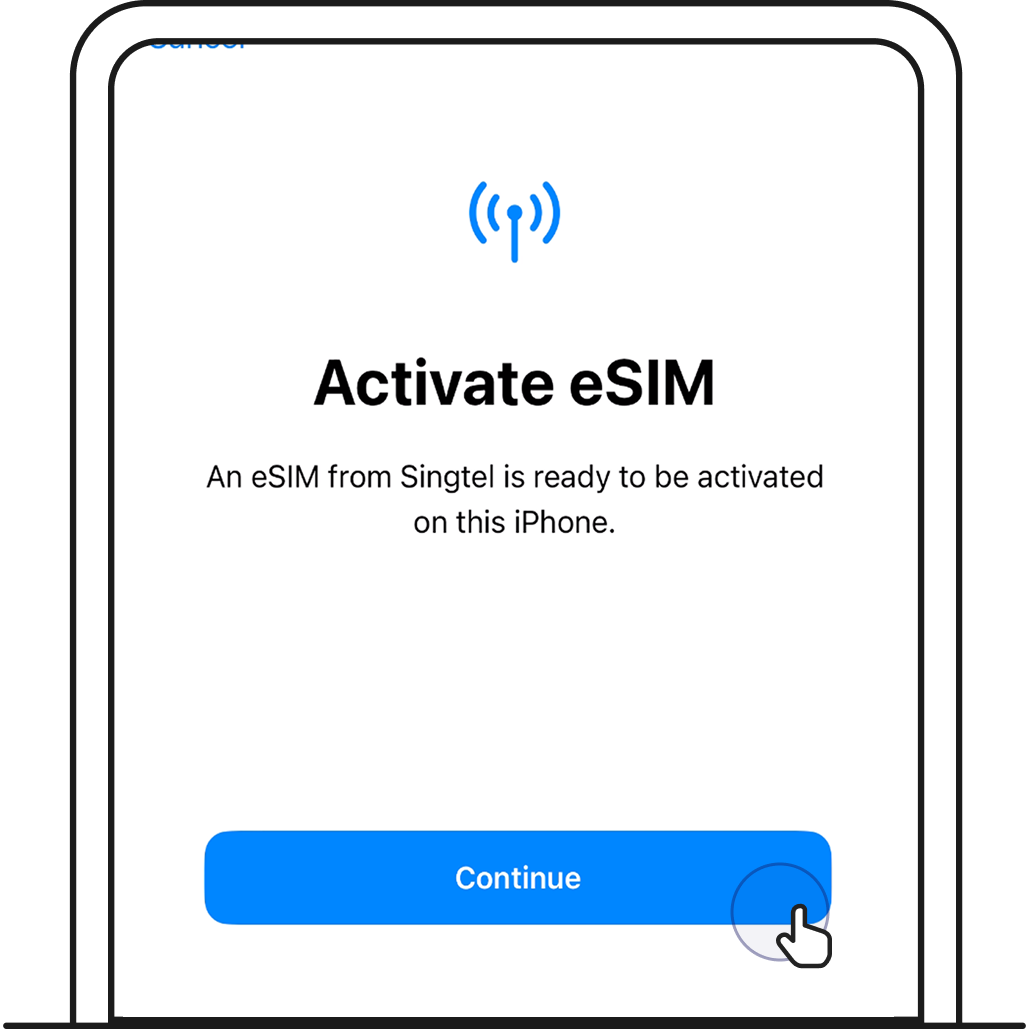
3. Tap Continue to start eSIM installation.
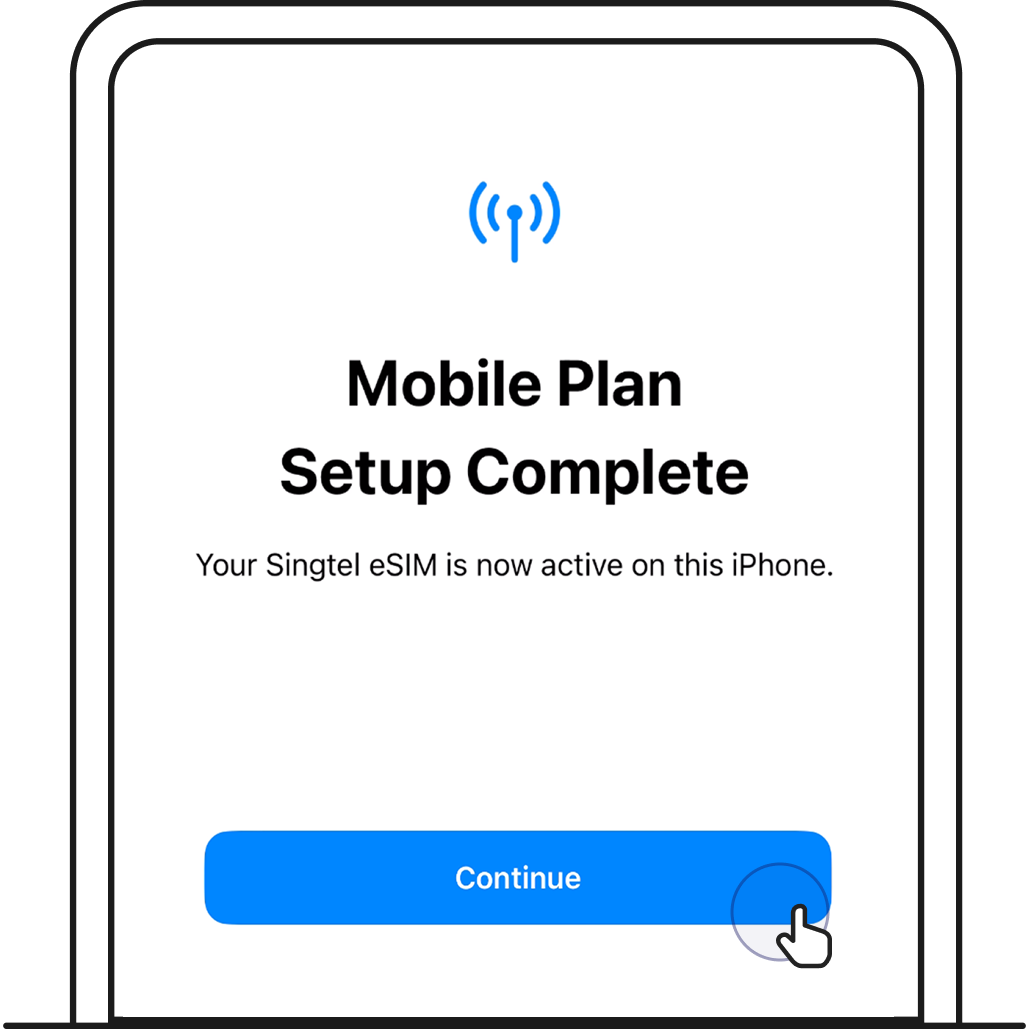
4. Label your new eSIM (device-dependent).
If you already have an existing SIM in your device, you’ll see the option to label your mobile lines. Give your new eSIM a name so you can identify it.
Important to note: Your current SIM will show up on the top, while your new eSIM will show up at the bottom.
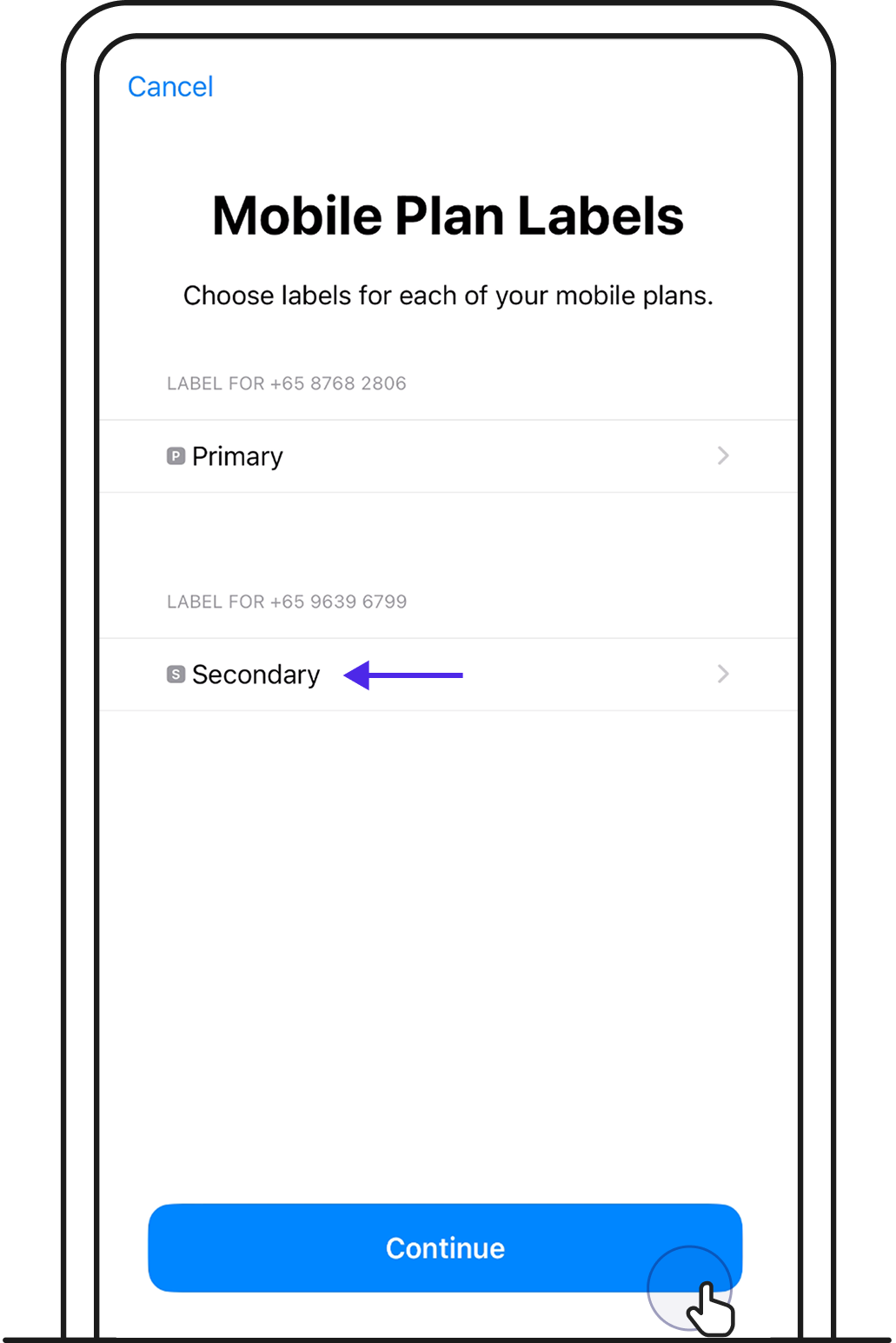
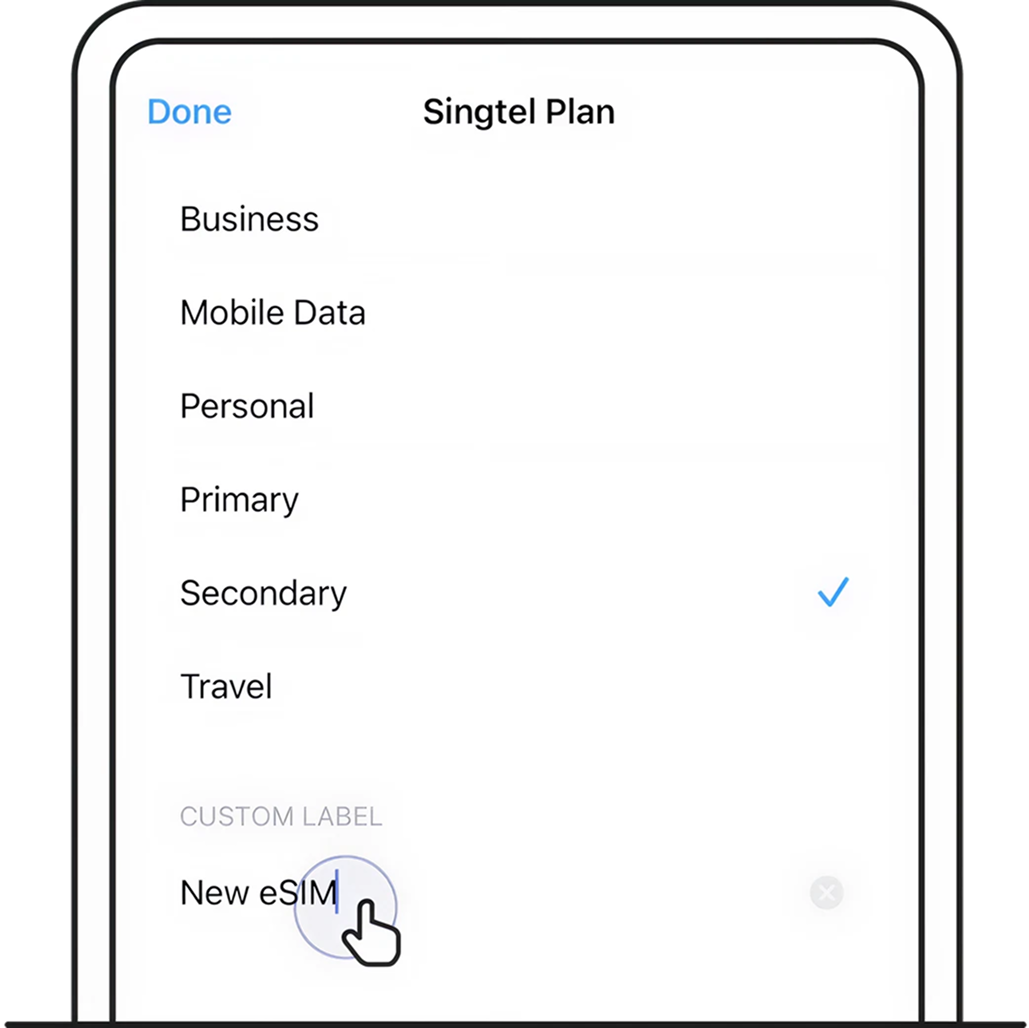
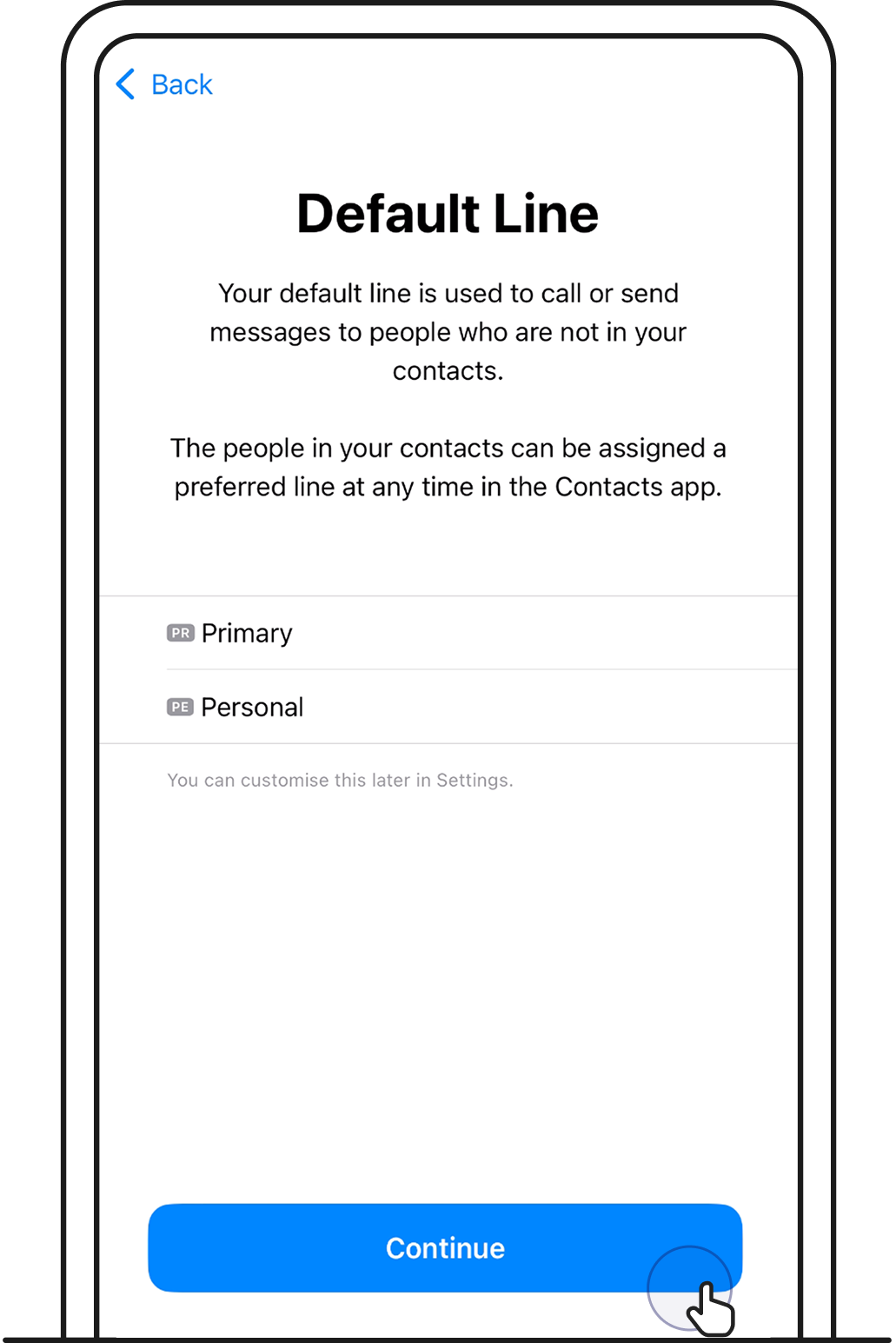
5. Choose your default mobile line.
Tap on the line you want to set as your default. This will be the number you make calls and send texts from. Then, tap Continue.
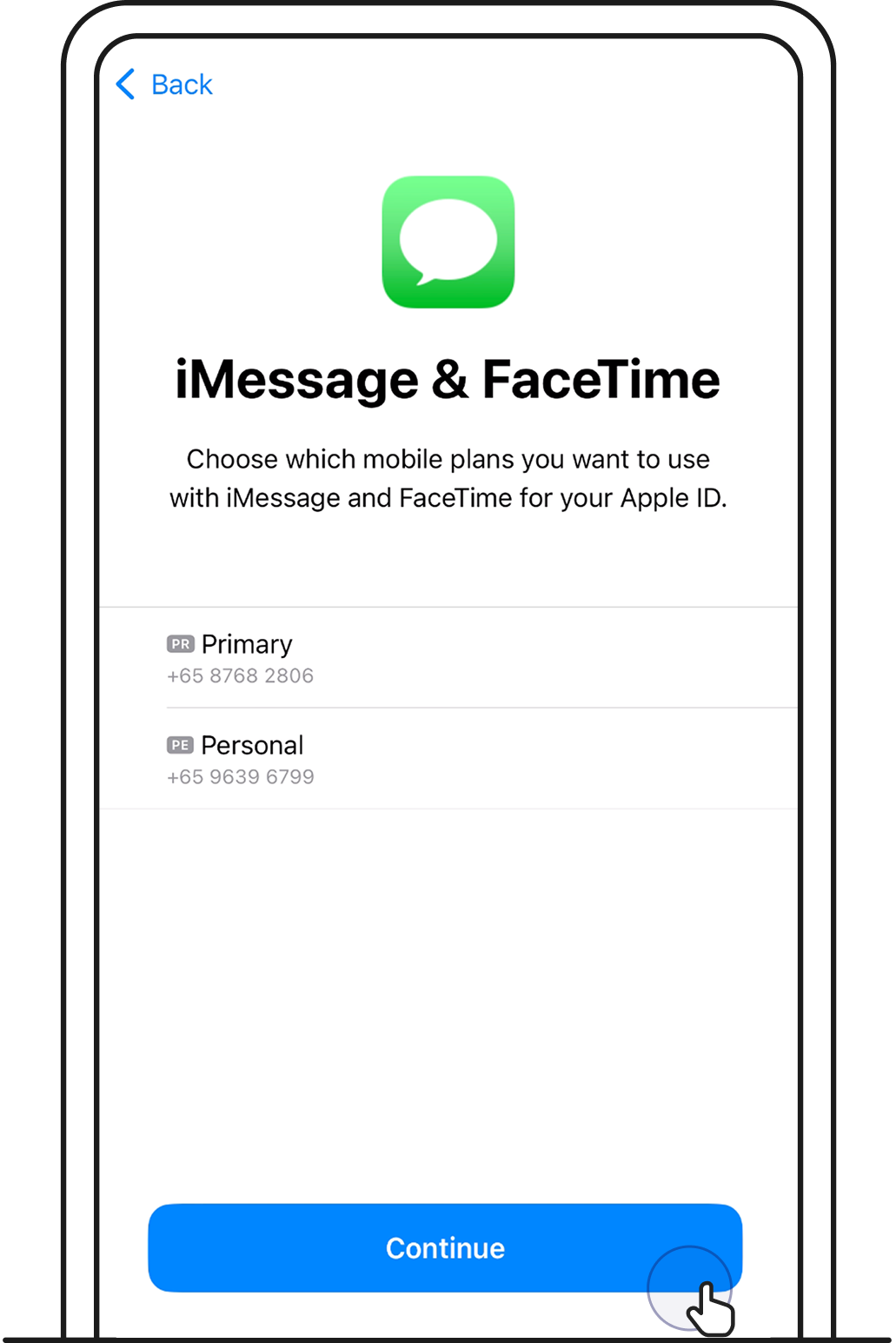
6. Choose which mobile line you want to use with iMessage and FaceTime.
Tap on the number you want to use iMessage and FaceTime with. You can choose either or both numbers. Then, tap Continue.
7. Choose which mobile line to use for mobile data.
Tap on the number you want to use for mobile data. Then, tap Continue.
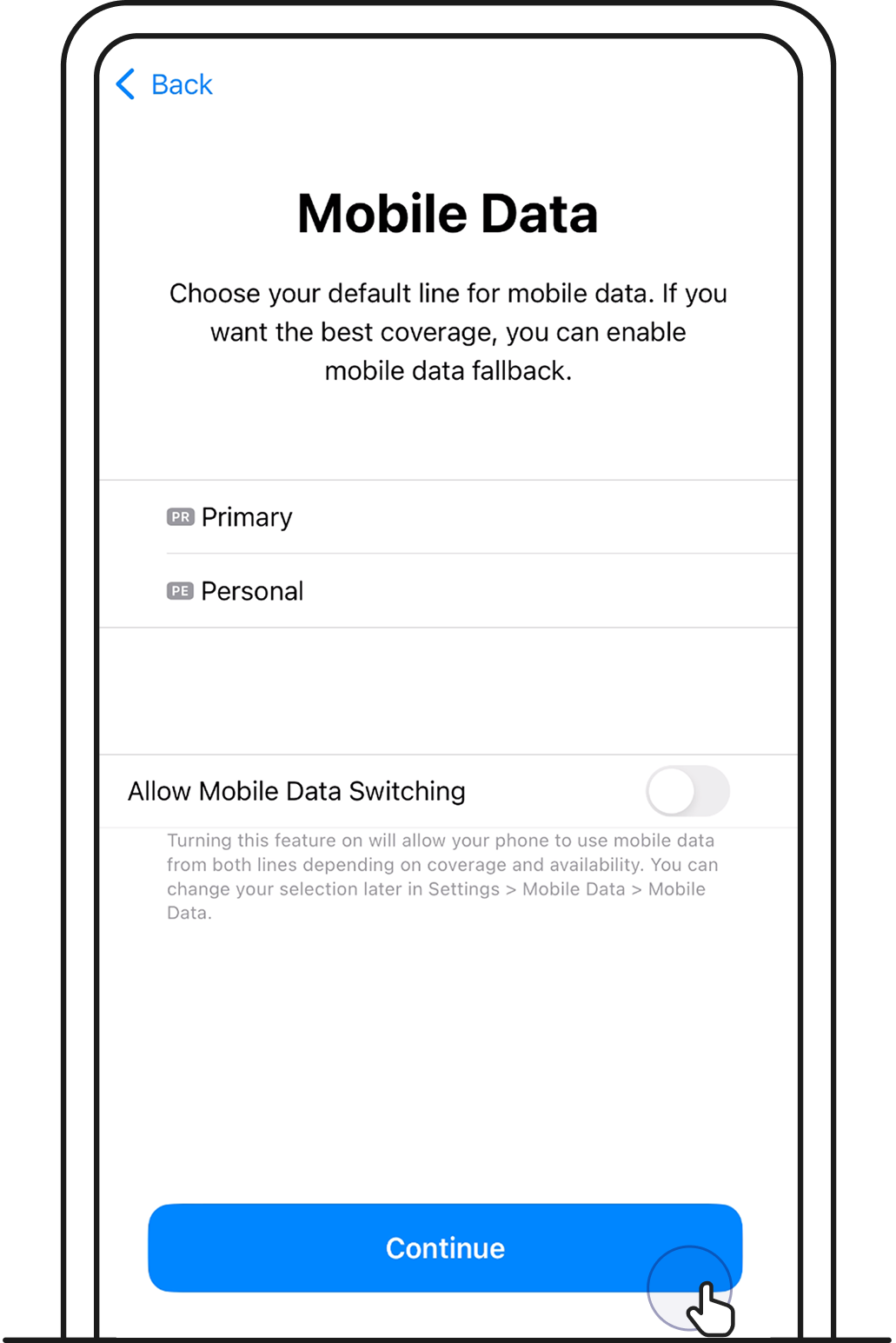
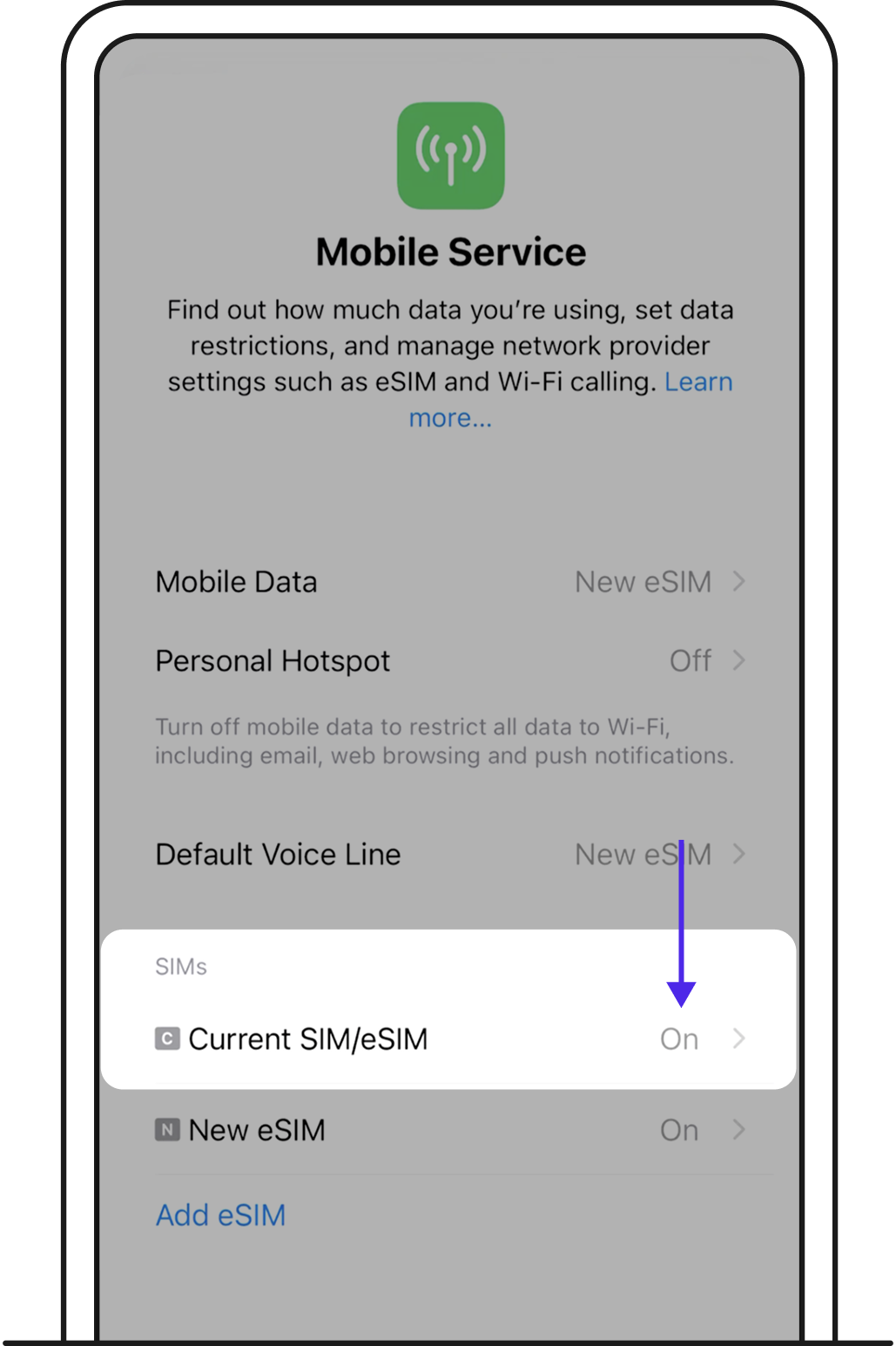
8. Make sure your new eSIM is toggled On.
If you want to change your default line settings in the future, you can find it device settings: Settings > Mobile Service.
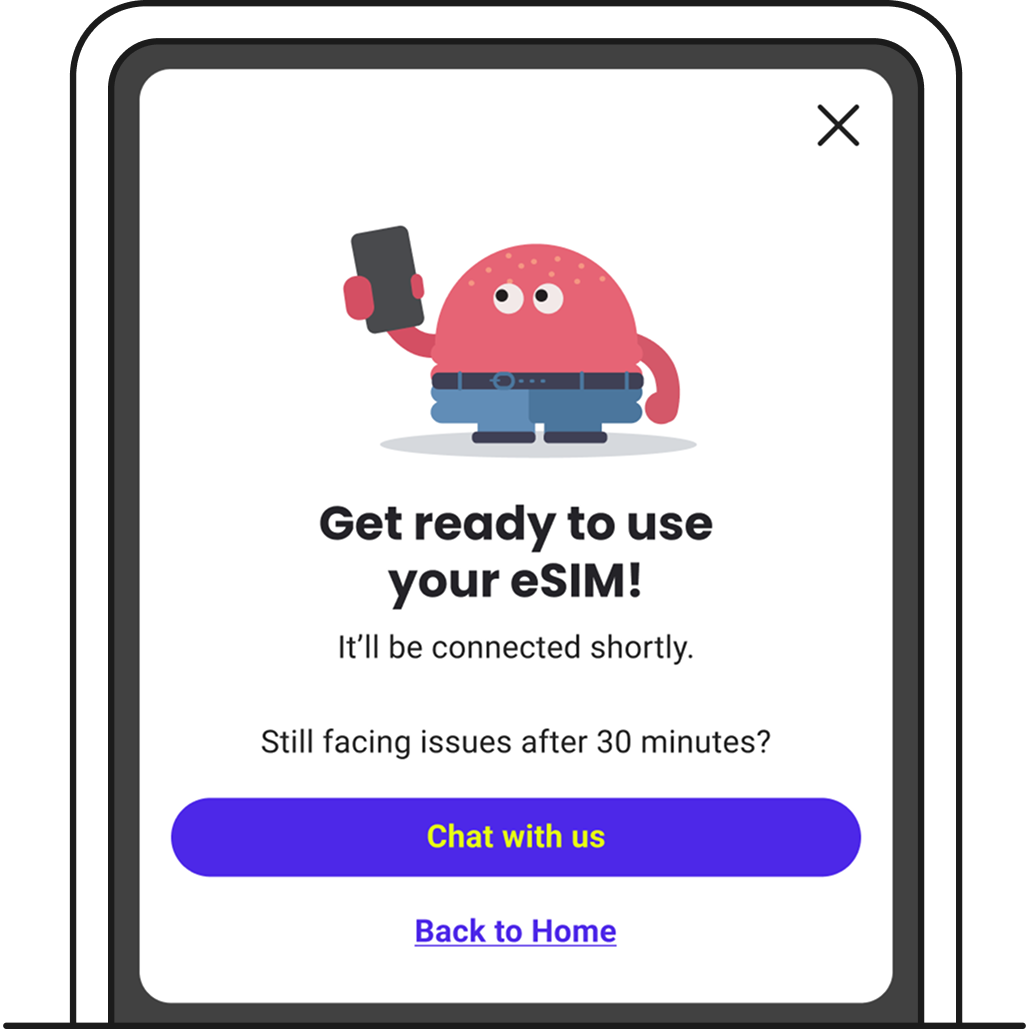
Once eSIM is installed, you’ll see this screen in GOMO app.
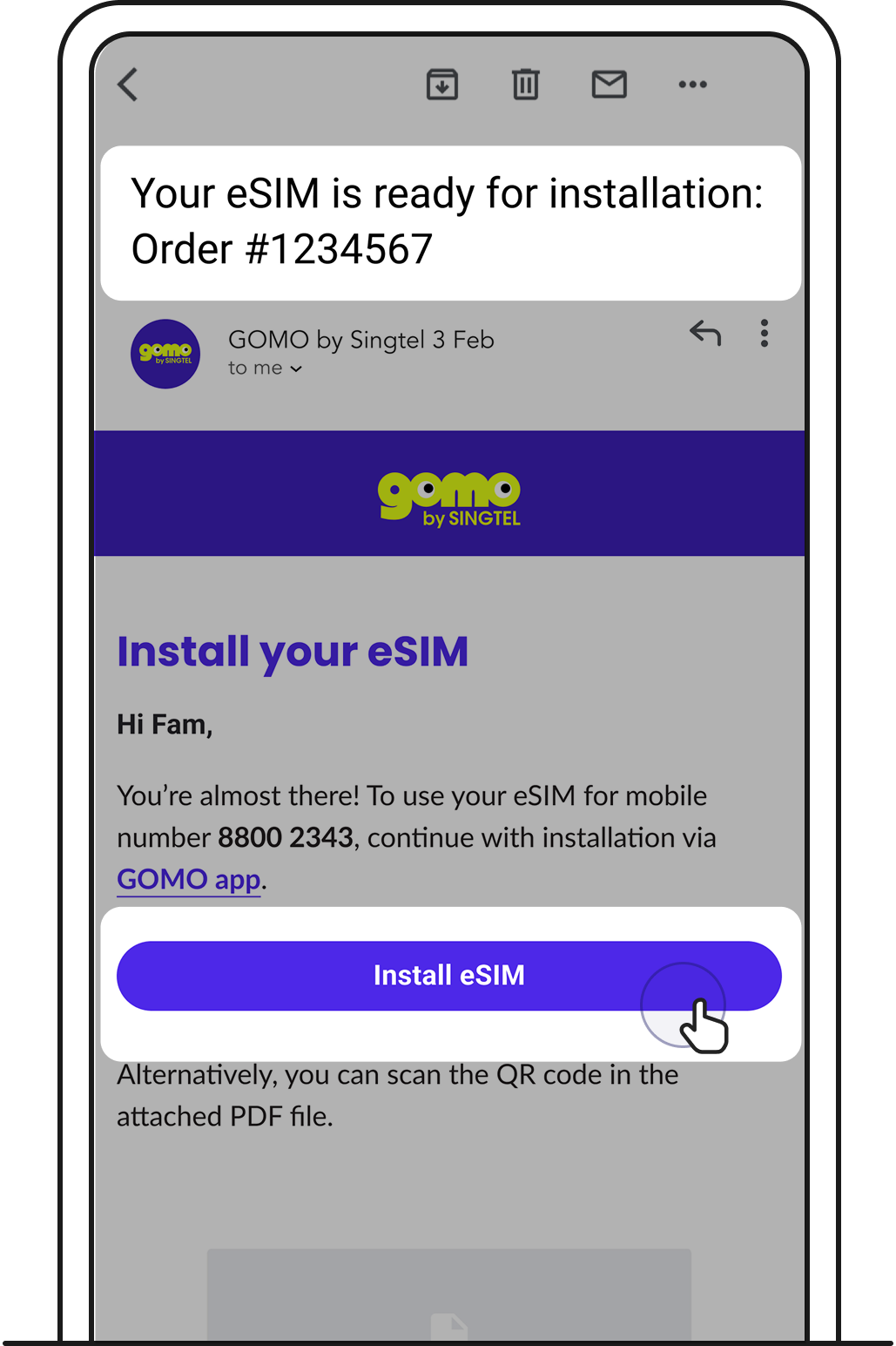
1. Open your eSIM installation email on the device you want to install it on, then tap Install eSIM.
If you’re porting in, simply set up your temporary number with the same steps.
2. You’ll be brought to GOMO app. Tap Continue on this device.
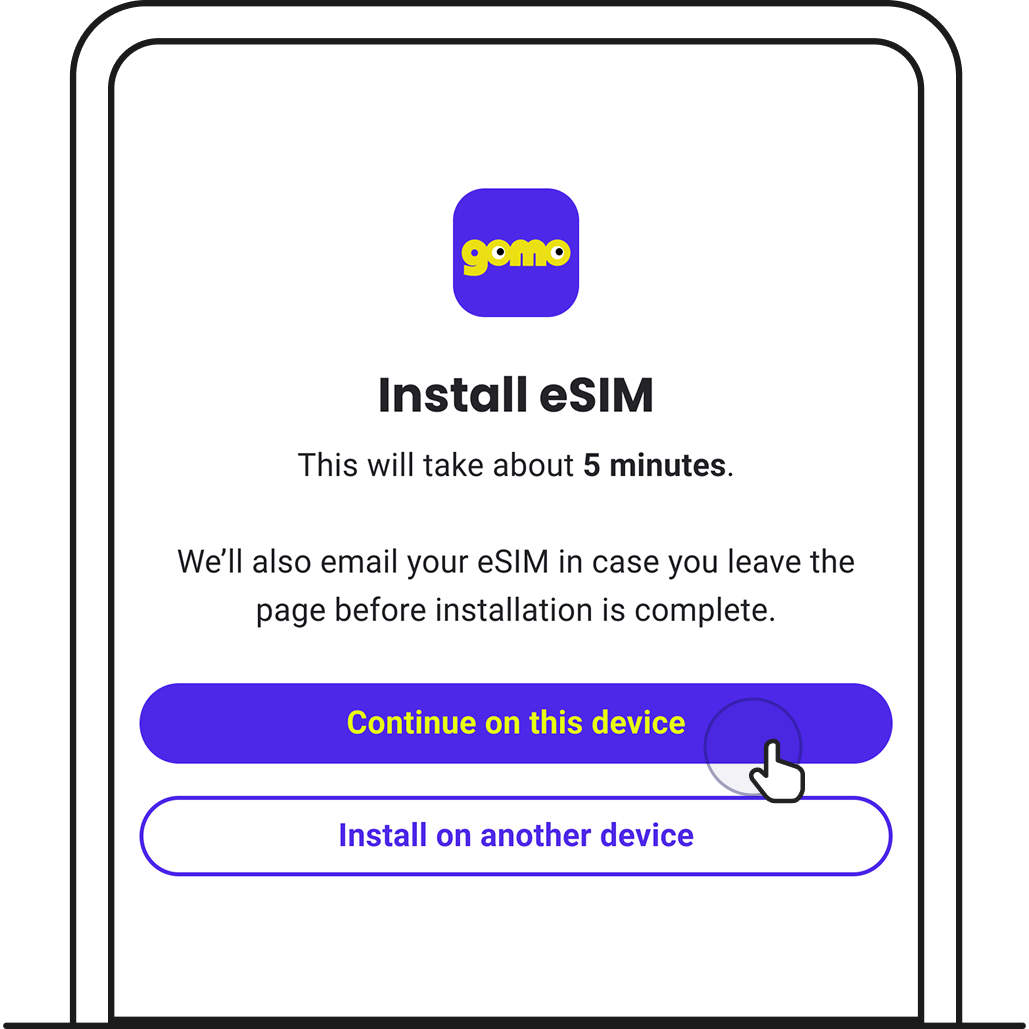
3. Your eSIM will begin installing. This may take a few minutes. Don’t leave the page.
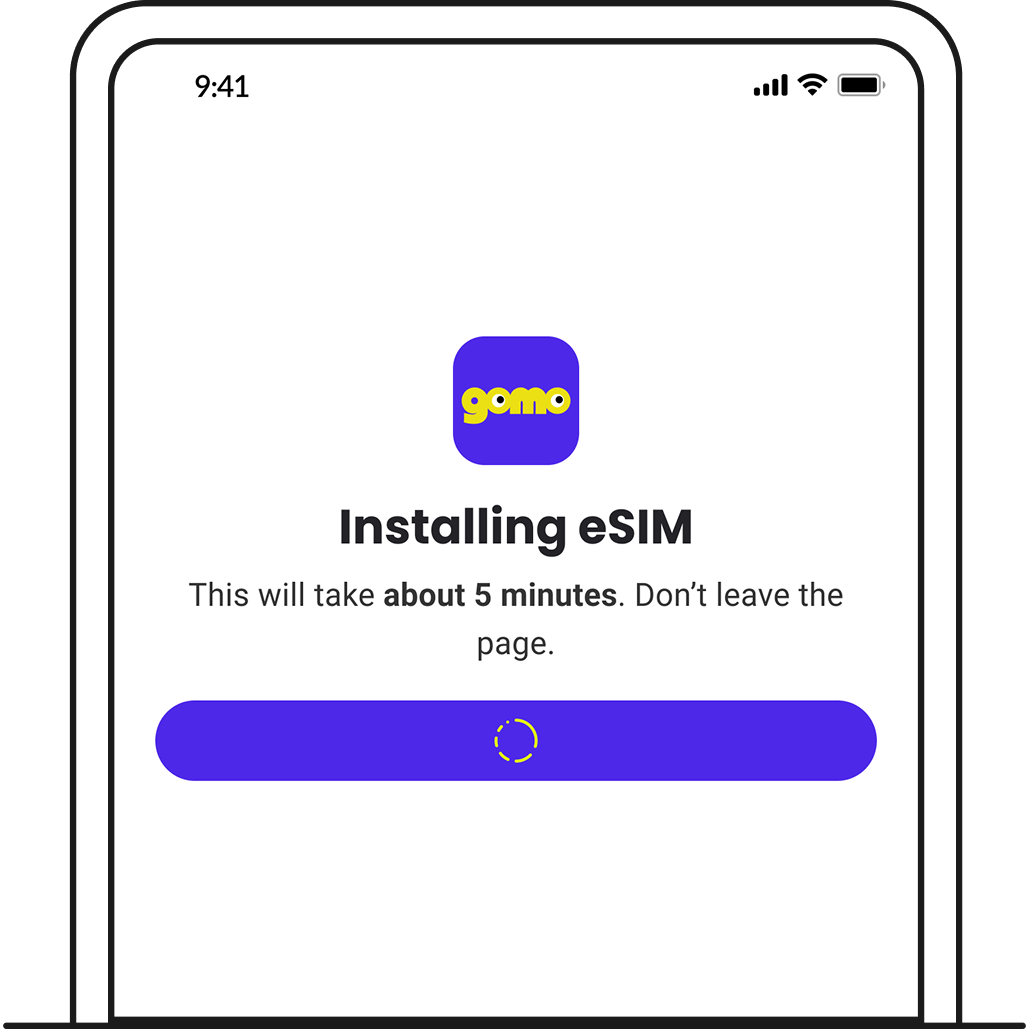
4. Once eSIM is installed, you’ll see this screen in GOMO app.
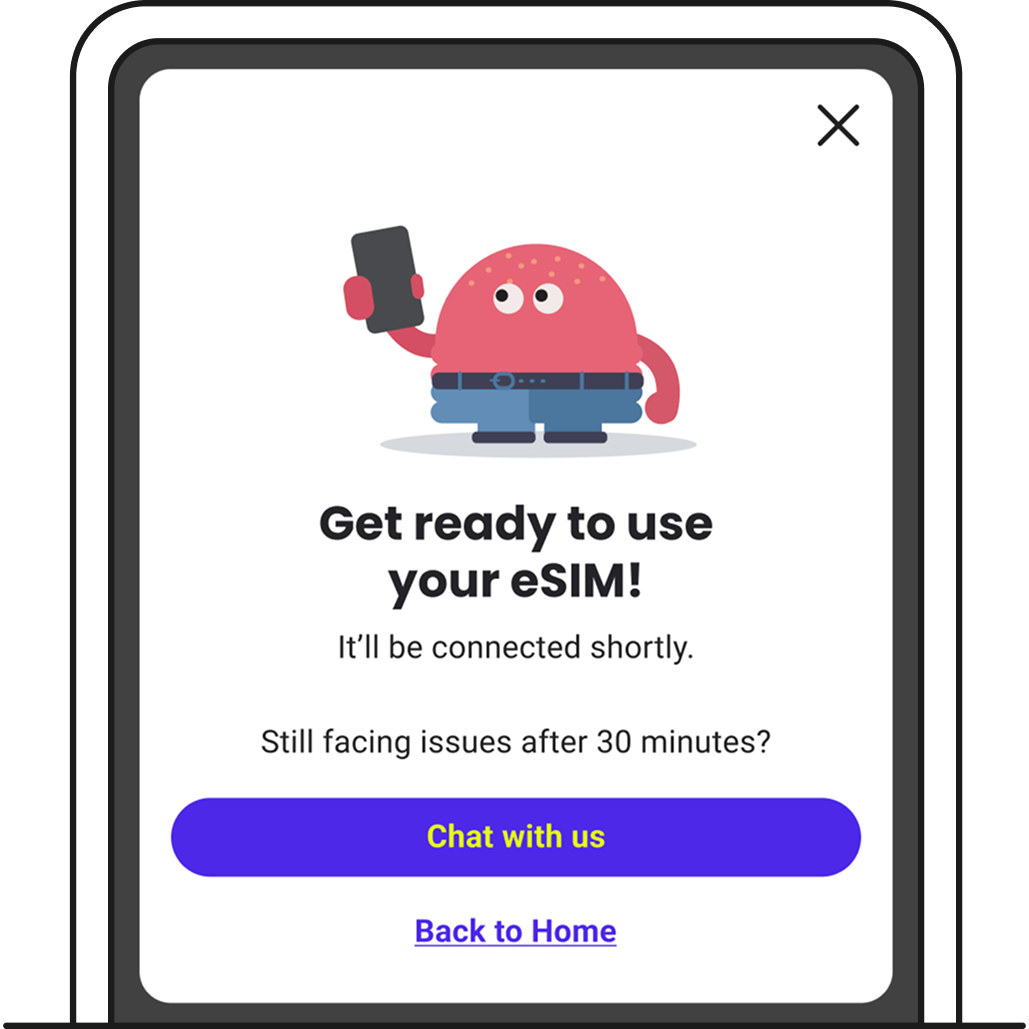
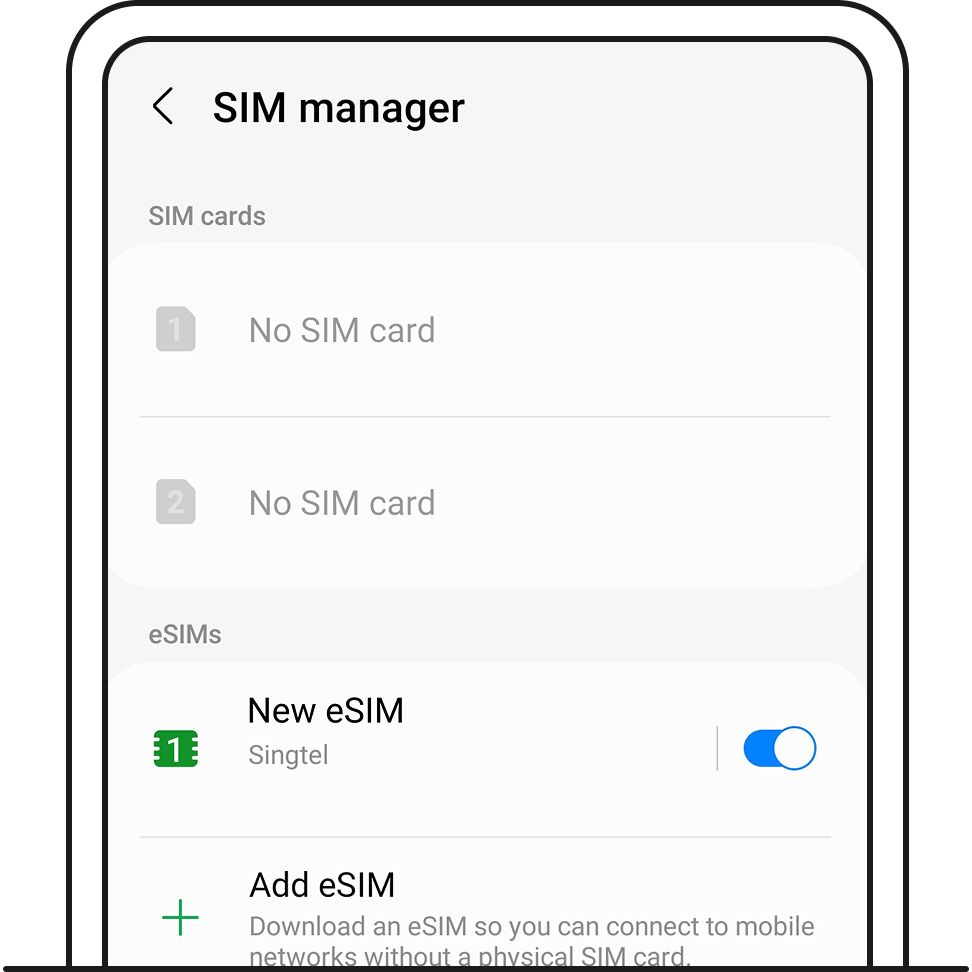
To check that your eSIM is installed successfully, go into Settings > Connections > SIM manager. Make sure your new eSIM is toggled on.
Related articles
Ask Zenmo your questions.